Barcode Manager
Keep every GTIN, SKU and internal code in one checked list, and print barcodes at GS1 sizes
Your items
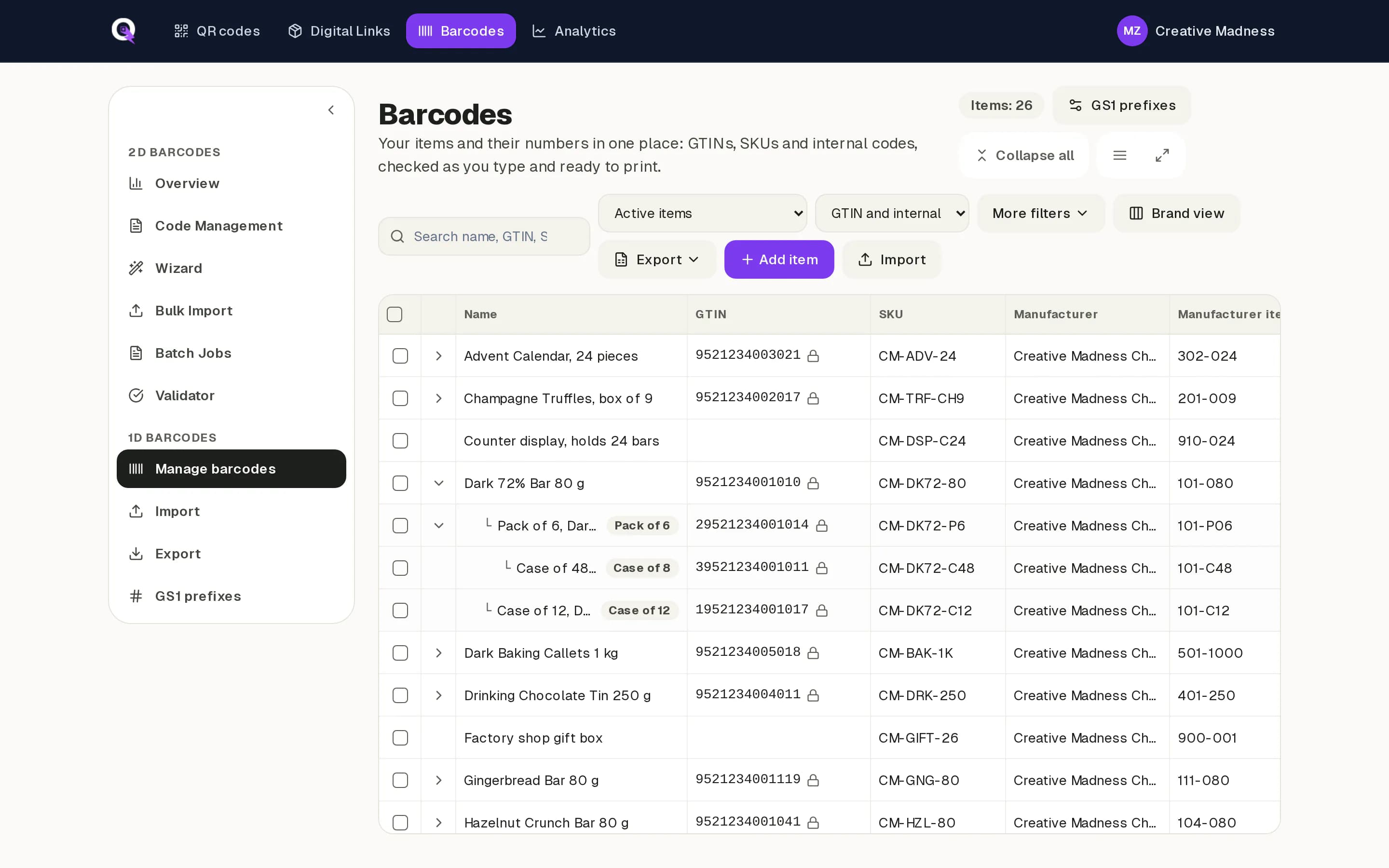
Open Barcodes in the top menu to see every item: its name, GTIN, SKU, manufacturer item number, barcode type and status. The list behaves like a spreadsheet. Type to edit, paste rows from Excel or Google Sheets, and every value is checked as you go, from check digits to duplicates.
Unit, pack and case
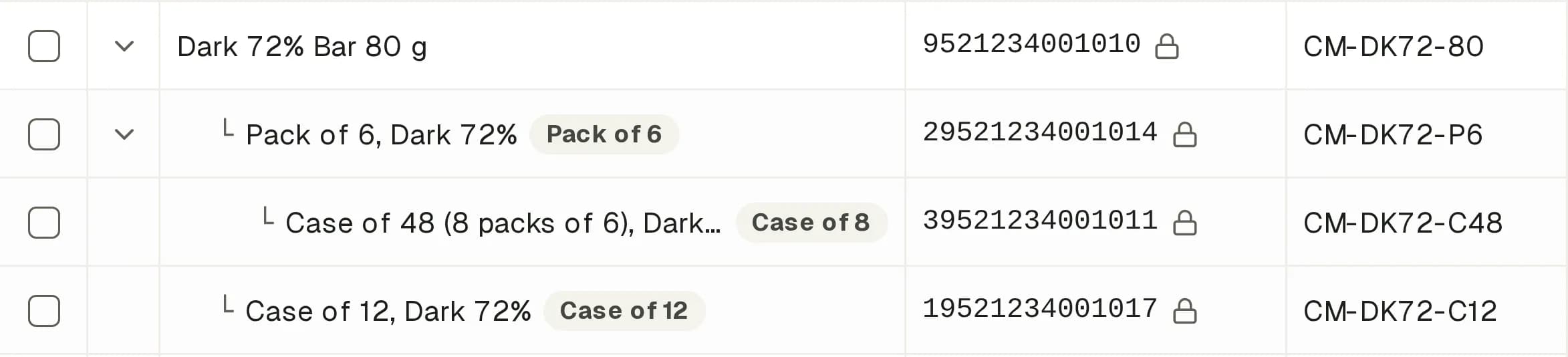
Products can have packaging levels. Use the arrow next to a product to see its packs and cases. When you add a level, QRbolt proposes its GTIN-14: an indicator digit in front of the unit's number with a new check digit. That is the number for the ITF-14 barcode on the carton.
Item details and status
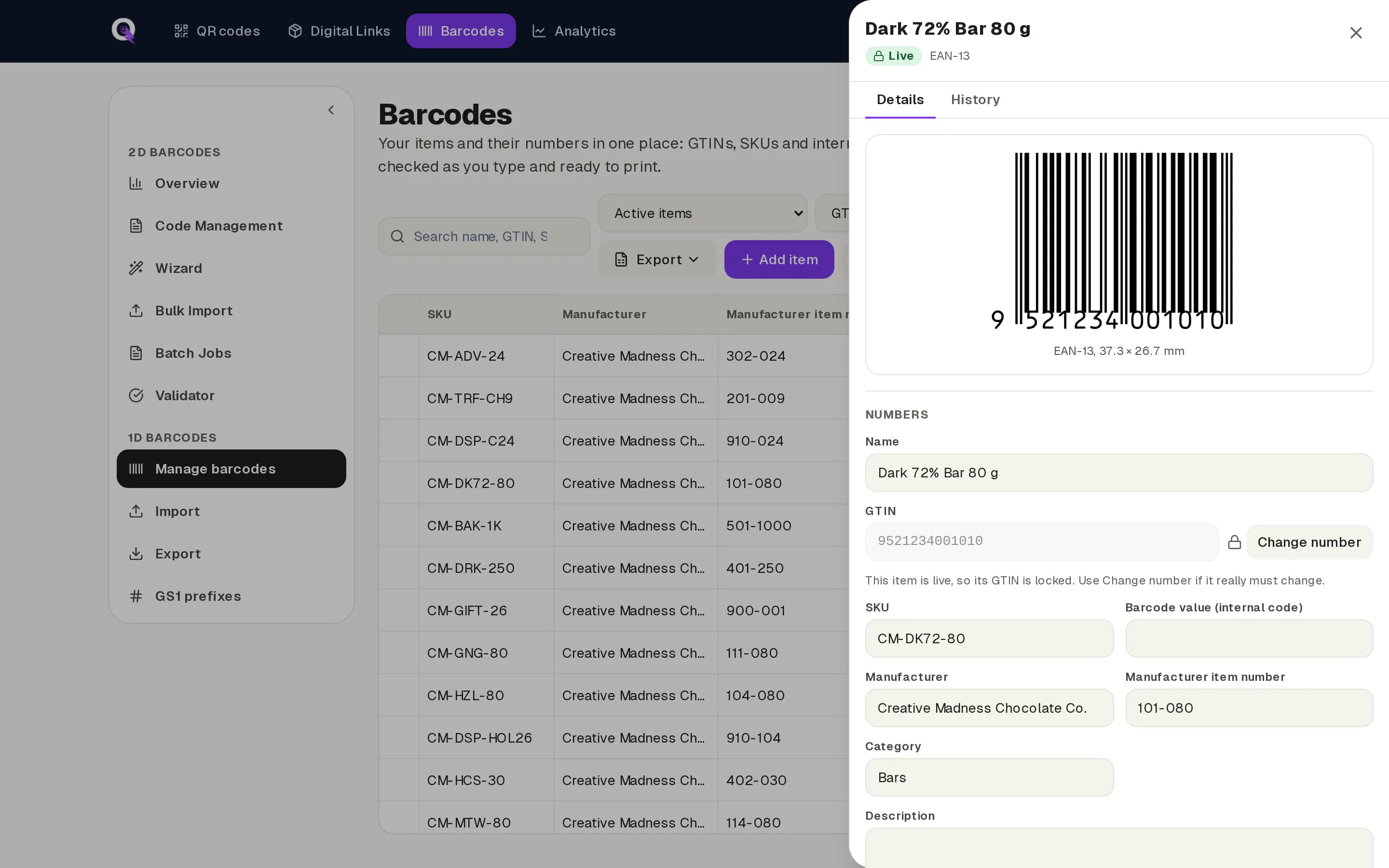
Open an item to see its numbers, barcode preview, download options, packaging levels and history. New items start as drafts. Set an item live when the barcode is in use: its GTIN is then locked, and only Change number can alter it, so nobody edits a number that is already printed by accident. Mark items you no longer sell as discontinued; they stay in the list for your records.
GS1 prefixes and new numbers
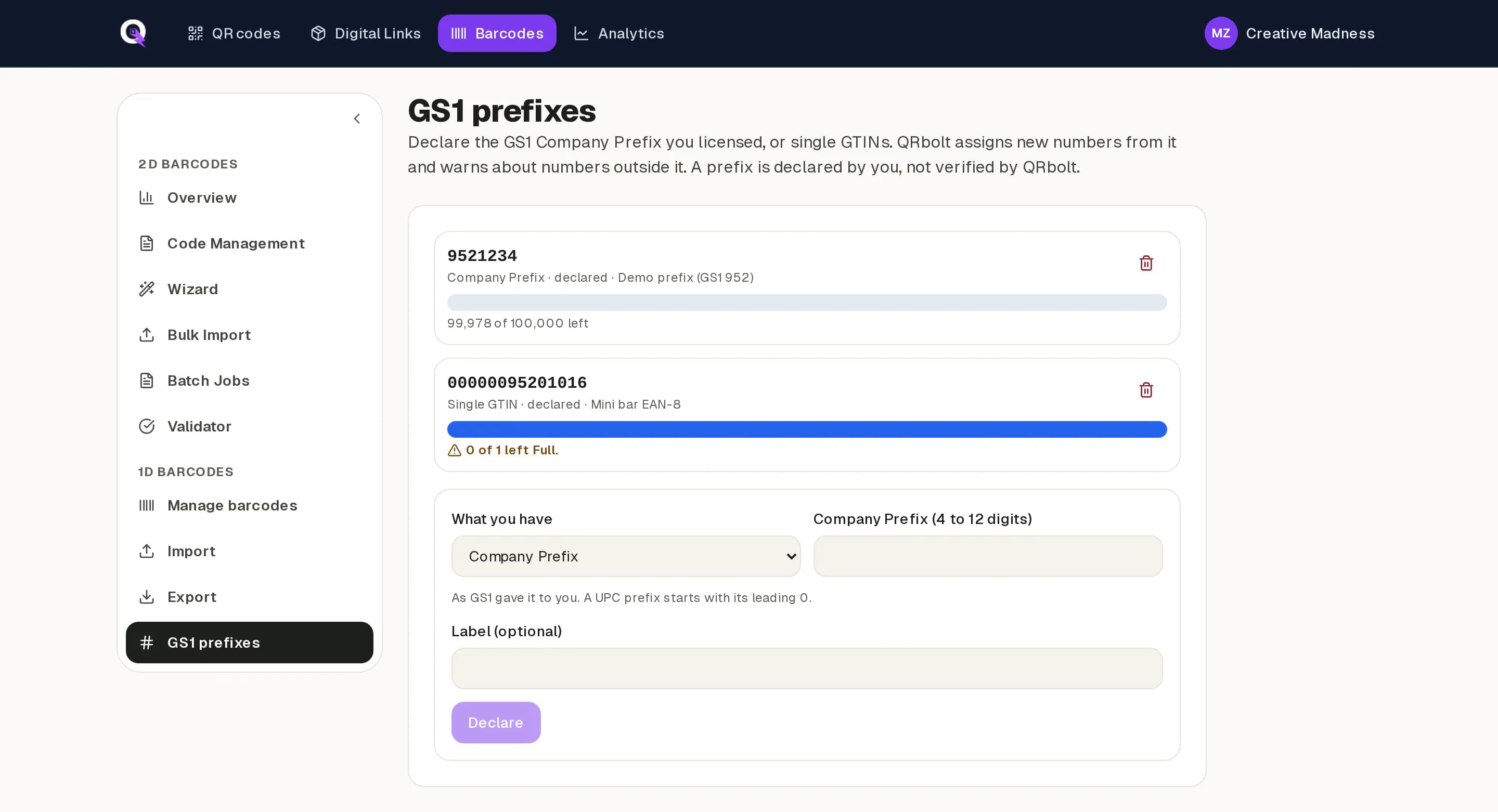
- 1Open GS1 prefixes and declare the GS1 Company Prefix you licensed, or the single GTINs you bought.
- 2On a new item, choose Assign GTIN. QRbolt takes the lowest free number in your prefix and adds the check digit.
- 3Watch the bar on each prefix to see how many numbers are left.
QRbolt does not check prefix ownership with GS1. You declare the prefix, and QRbolt warns you about numbers outside it.
Files for print
Download a PDF, an SVG, or a PNG at 300 or 600 DPI, sized from 80% to 200% of the GS1 standard size. Paid plans add batch downloads as one ZIP, label sheets and spec sheets for your printer. Internal codes use Code 128 or Code 39 and stay filtered apart from your GTINs.
Adding a 2D code
Each item is the same product record QRbolt uses for GS1 Digital Links. When you add a 2D code to a product, it carries the GTIN already on the pack, so there is no second list to keep in step.