GS1 Digital Links in QRbolt
Create 2D codes for your products, route each batch to its own page, and check them before print
What a Digital Link is
A GS1 Digital Link is a web address built from your product's GTIN, and optionally its batch, serial number or best-before date. Put in a QR code, it works at a retail checkout that reads 2D codes and on any shopper's phone. QRbolt creates these links, resolves them on your own domain and lets you change where they lead.
Create one with the wizard
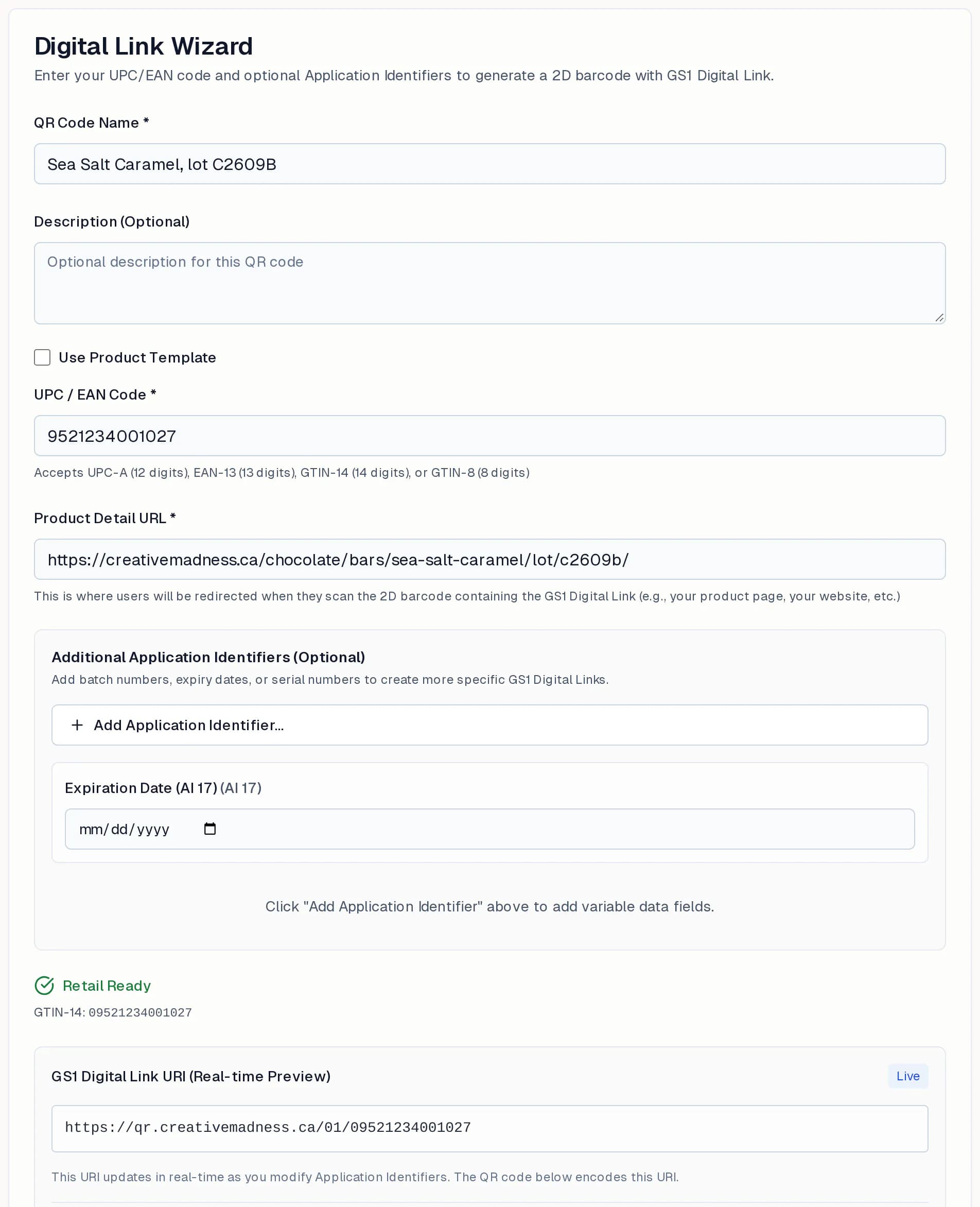
- 1Open Digital Links and choose Create Digital Link, or open the Wizard.
- 2Name the code and enter the product's GTIN (UPC, EAN-13, EAN-8 or GTIN-14). It is checked as you type.
- 3Enter the page the code should open, such as the product page.
- 4Optionally add application identifiers such as a batch or lot number and a best-before date, so each batch gets its own link.
- 5Check the live preview of the link and the QR code, then create it.
See your codes by product
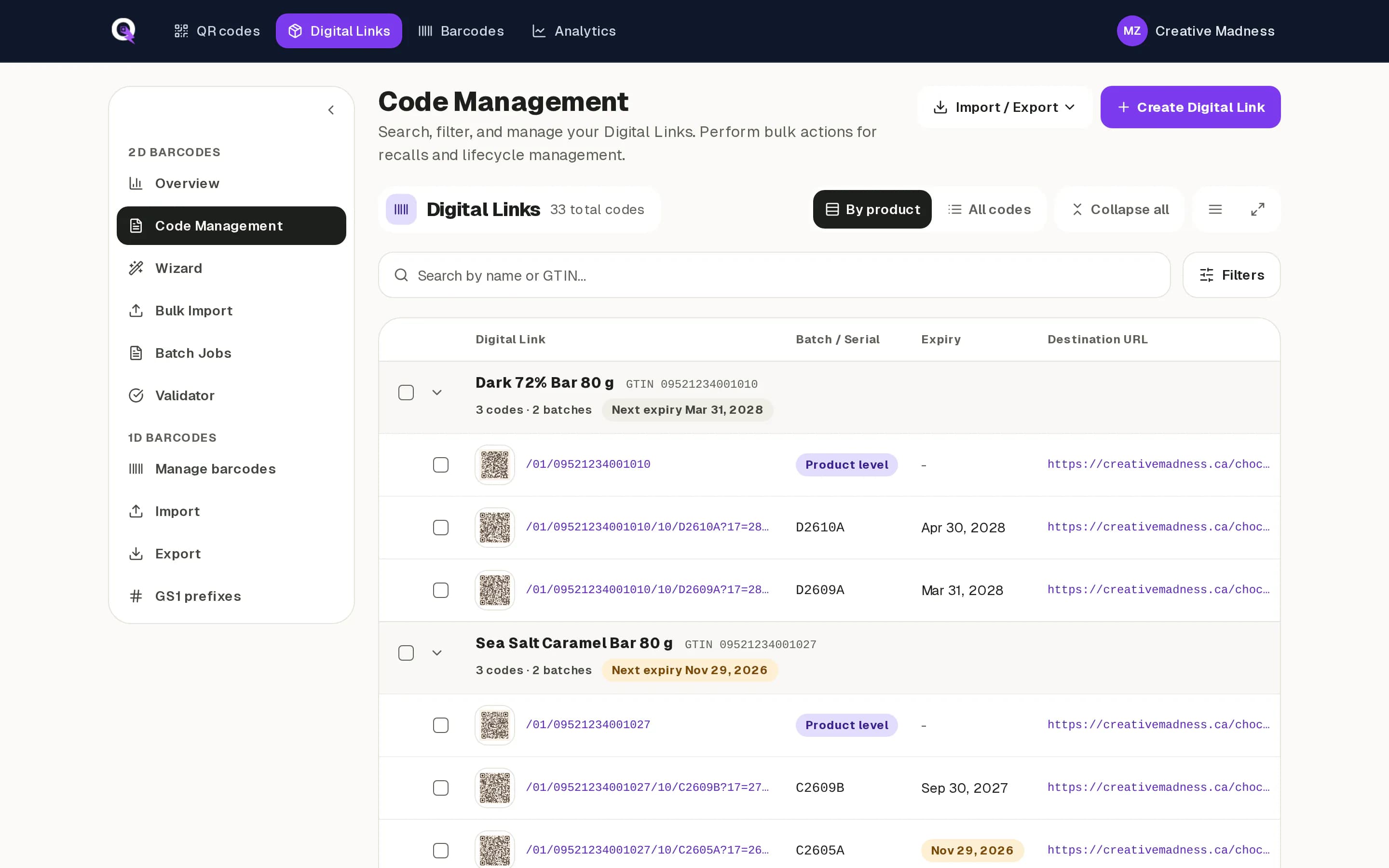
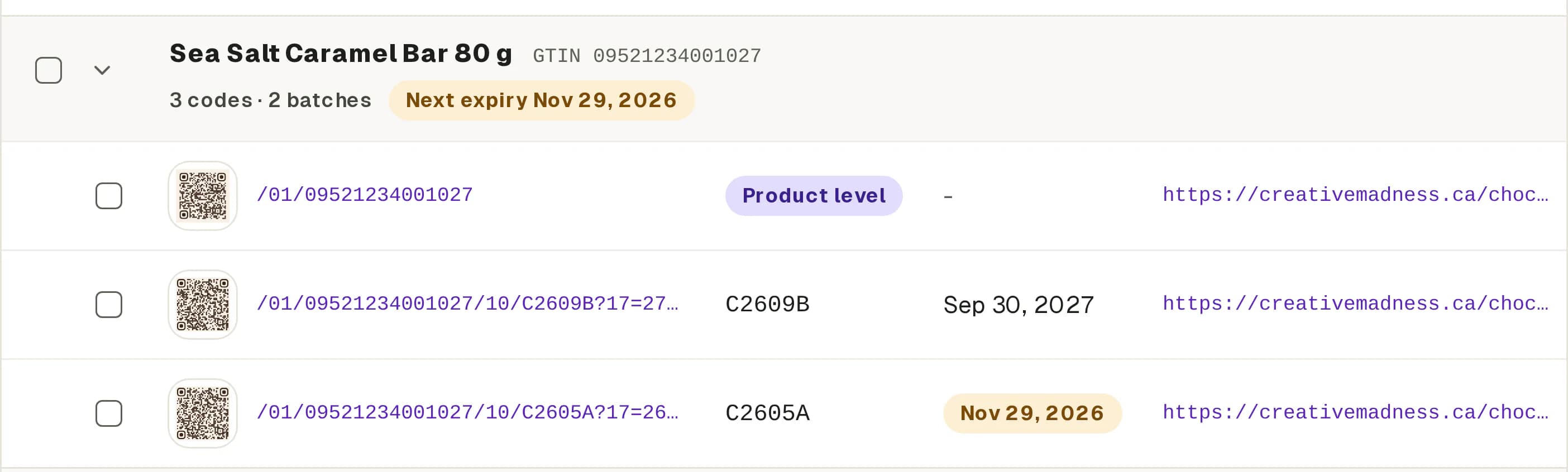
Code Management groups your Digital Links by product. Each product shows its product-level code and its batch codes, with their best-before dates and destinations. A batch that is close to its best-before date is highlighted, so you can point it at a recipe page or an offer before it runs out.
Check a link before you print
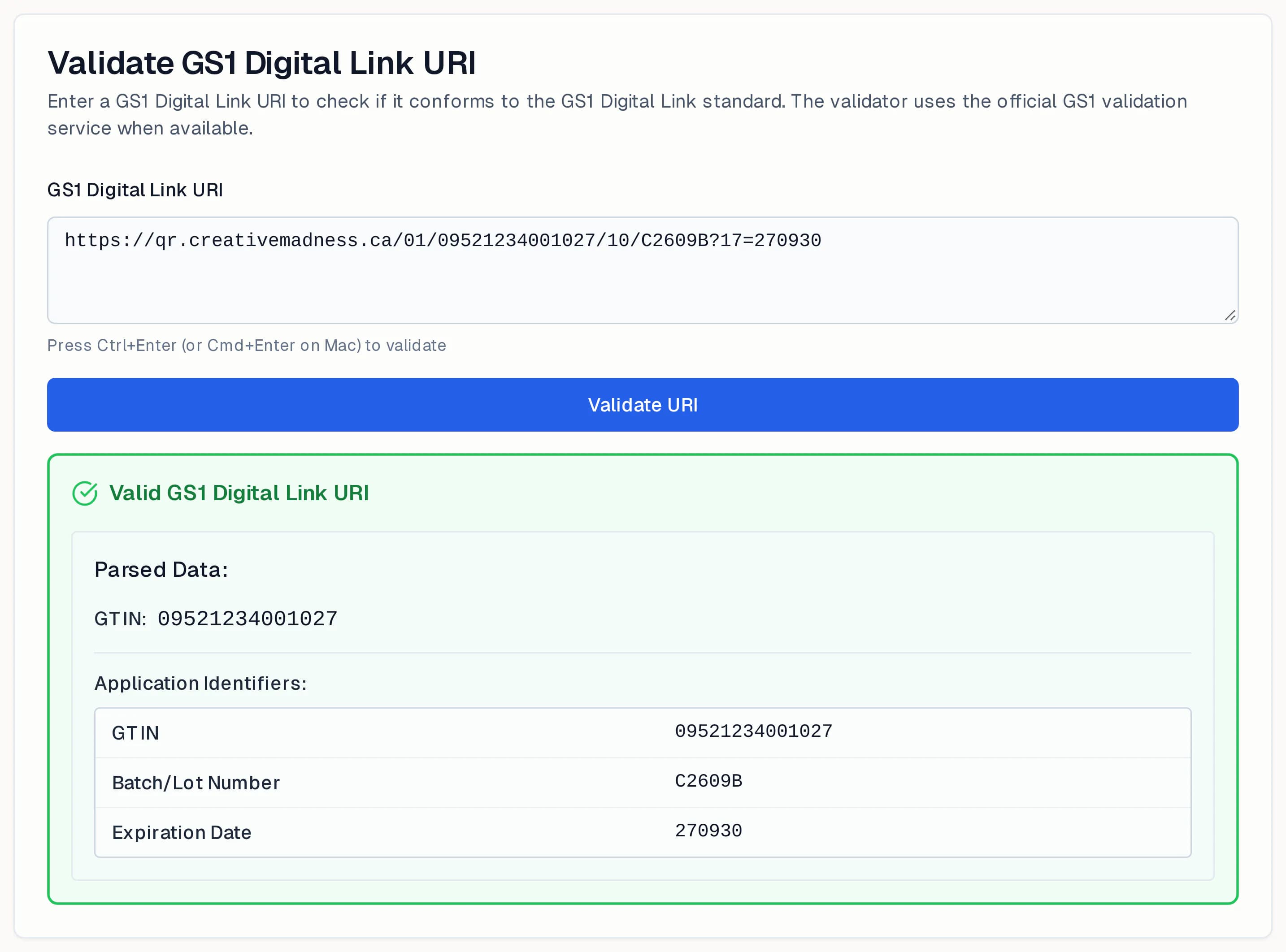
The Validator reads a Digital Link and shows what is in it: the GTIN, the batch and the best-before date. Use it on the final artwork link before you send anything to the printer.
Many products at once
Bulk Import turns a spreadsheet of products into Digital Links, and Batch Jobs shows the progress of large runs. If your products are already in Barcode Manager, a 2D code carries the same GTIN as the barcode already on the pack.