Organize codes with groups
Keep campaigns, products and teams apart, and filter everything by group
How groups work
A group is a folder for QR codes. Groups can sit inside other groups, so a brand can hold Packaging, Seasonal, Retail and events and Wholesale under one parent. Each code belongs to one group, or to none.
The group shows on each code's card, and you can filter the dashboard and analytics by group.
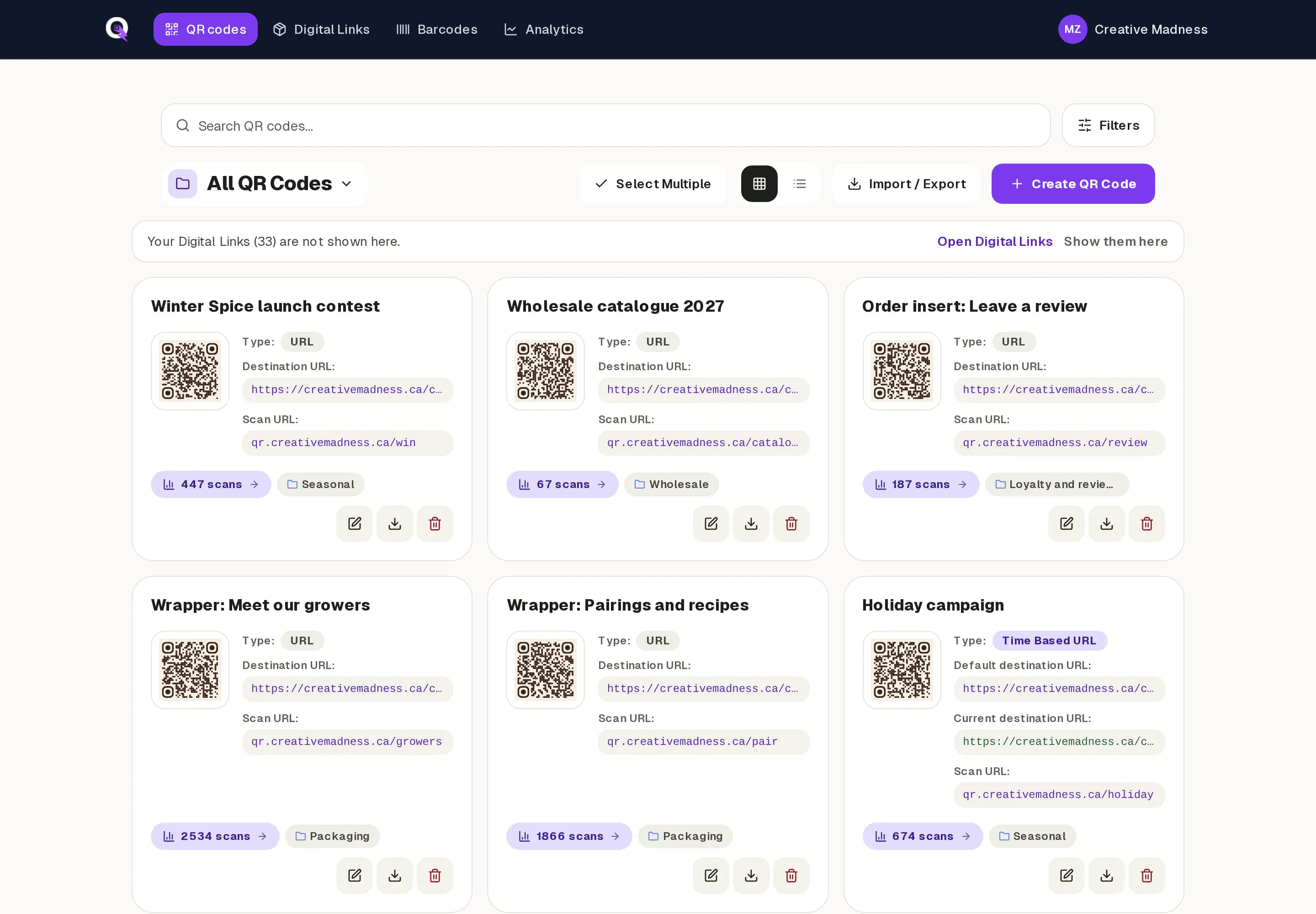
Create and use groups
- 1On the QR codes dashboard, open the group menu next to the page title (it starts on All QR Codes).
- 2Choose New Group, name it and, if it belongs inside another group, pick the parent.
- 3To file a code, edit it, open Grouping and pick the group. You can also create a group from there.
- 4To move many codes at once, use Select Multiple on the dashboard and choose a group for the selection.
Good to know
- Moving a group moves everything inside it, including its own subgroups.
- Digital Links get their own group automatically, so retail codes stay separate from marketing codes.
- Analytics can be filtered by group, which is the easiest way to compare one campaign against another.